Connect a Microsoft Foundry agent to Copilot Studio
You can connect a Microsoft Foundry agent to Copilot Studio as an external agent, but there are two prerequisites that matter before the connection works reliably.
- Access to the agent created in Microsoft Foundry portal.
- Setting up the connection to the Project endpoint in Microsoft Foundry
Prerequisites
Before you add the agent in Copilot Studio, make sure you have the following:
- A Microsoft Foundry project with an existing agent.
- The project endpoint from Foundry.
- The agent ID needed by Copilot Studio.
Microsoft Learn documents the requirement here:
- Configure and share your Microsoft Foundry agent
- Connect to a Microsoft Foundry agent in Copilot Studio
If you are already hitting the 400 error, I covered the fix separately in Fix 400 error while using Microsoft Foundry to Copilot Studio.
Step 1: Open Agents in Copilot Studio
In Copilot Studio, open your main agent and select Add an agent.
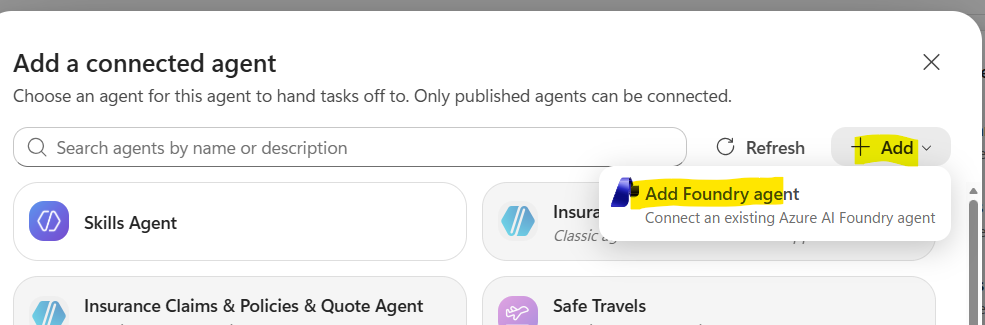
Choose Microsoft Foundry as the external agent type.
Step 2: Review the agent details you need
Copilot Studio needs the Foundry connection and the target agent details. Keep the Foundry project endpoint and the target agent information ready before creating the connection.
Step 3: Copy the Foundry project endpoint
In Microsoft Foundry, copy the project endpoint. It should look similar to this:
https://<resource-name>.services.ai.azure.com/api/projects/<project-name>
Use the project endpoint exactly as shown in Foundry.
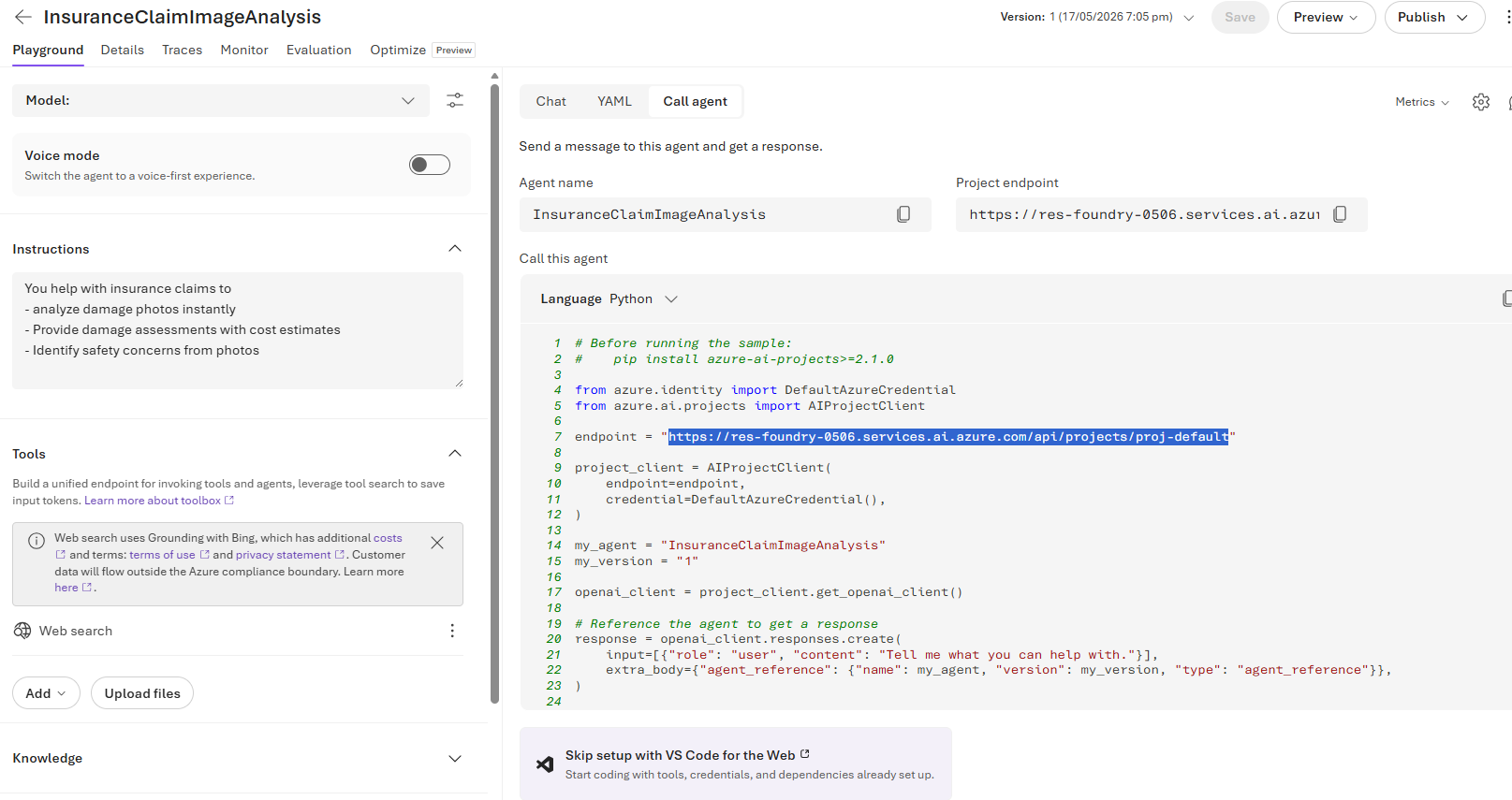
Step 4: Create a new Foundry connection in Copilot Studio
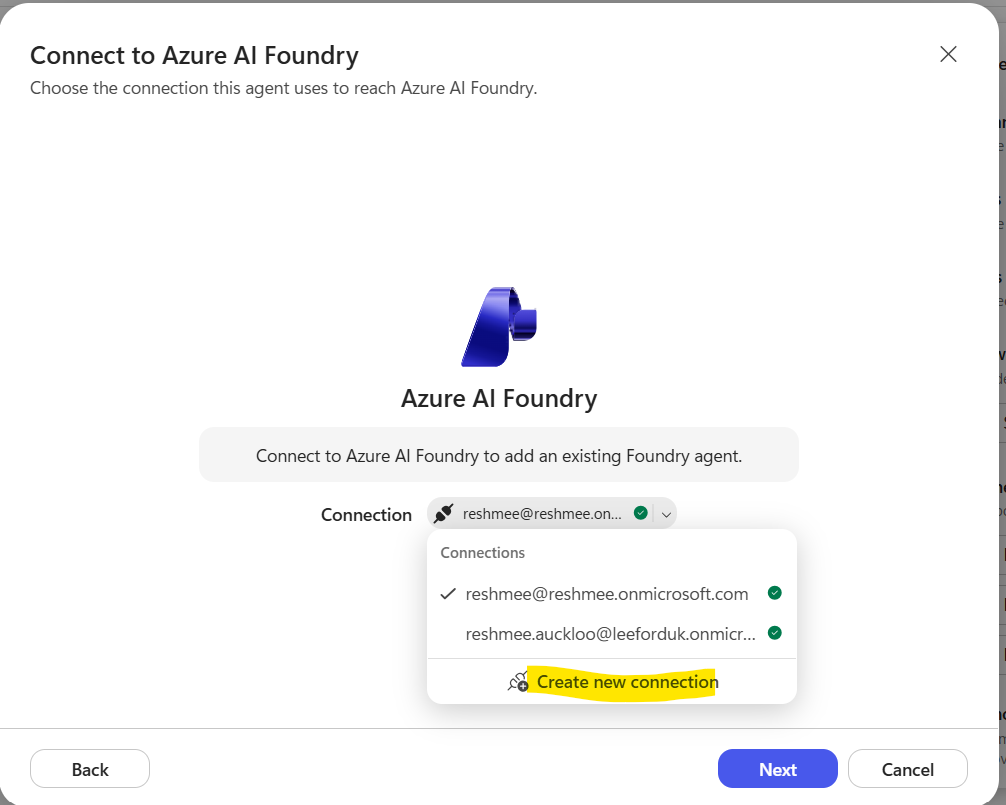
Back in Copilot Studio, create a new connection when prompted.
Paste the Foundry project endpoint into the connection dialog. Ensure to append a / at the end of the endpoint, otherwise it won’t work with 400 error or other errors.
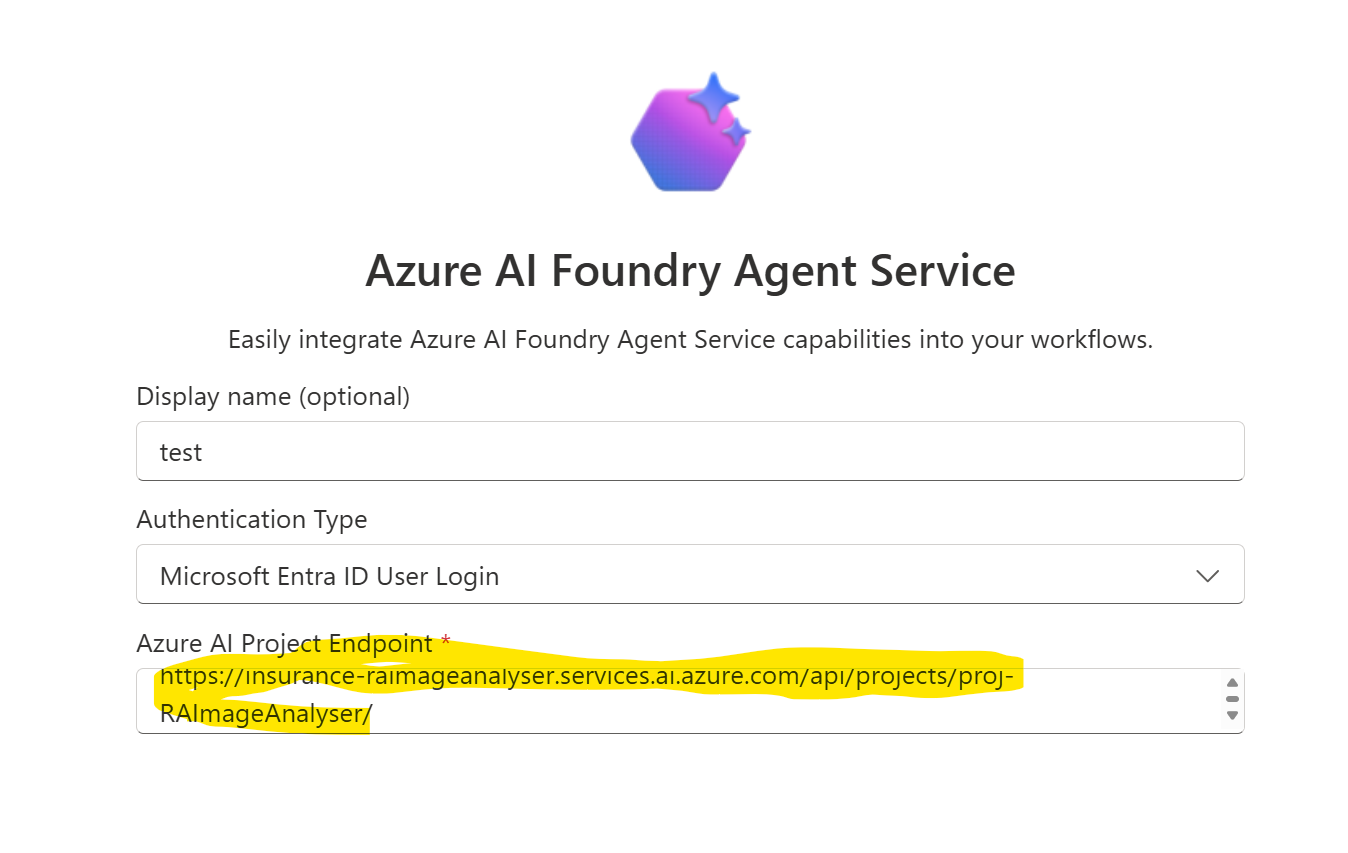
After the connection is created:
- Select the connection.
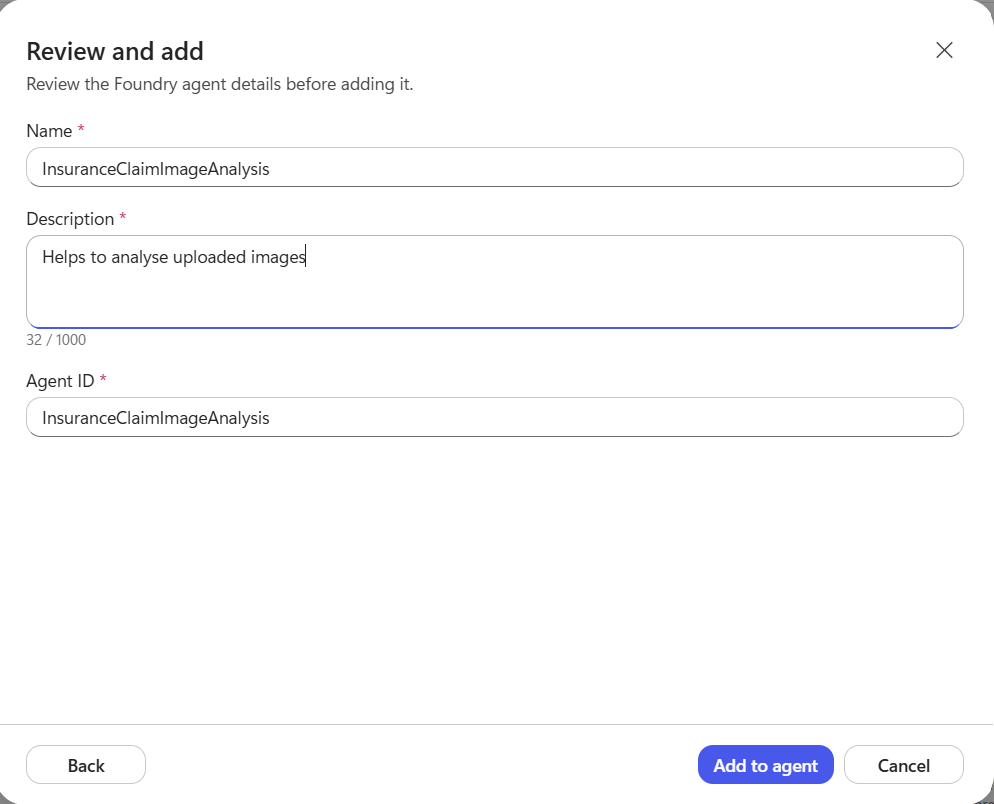
- Enter a name and description for the external agent inside Copilot Studio.
- Enter the target agent ID from Microsoft Foundry.
- Save the agent.
Step 5: Test the connected agent
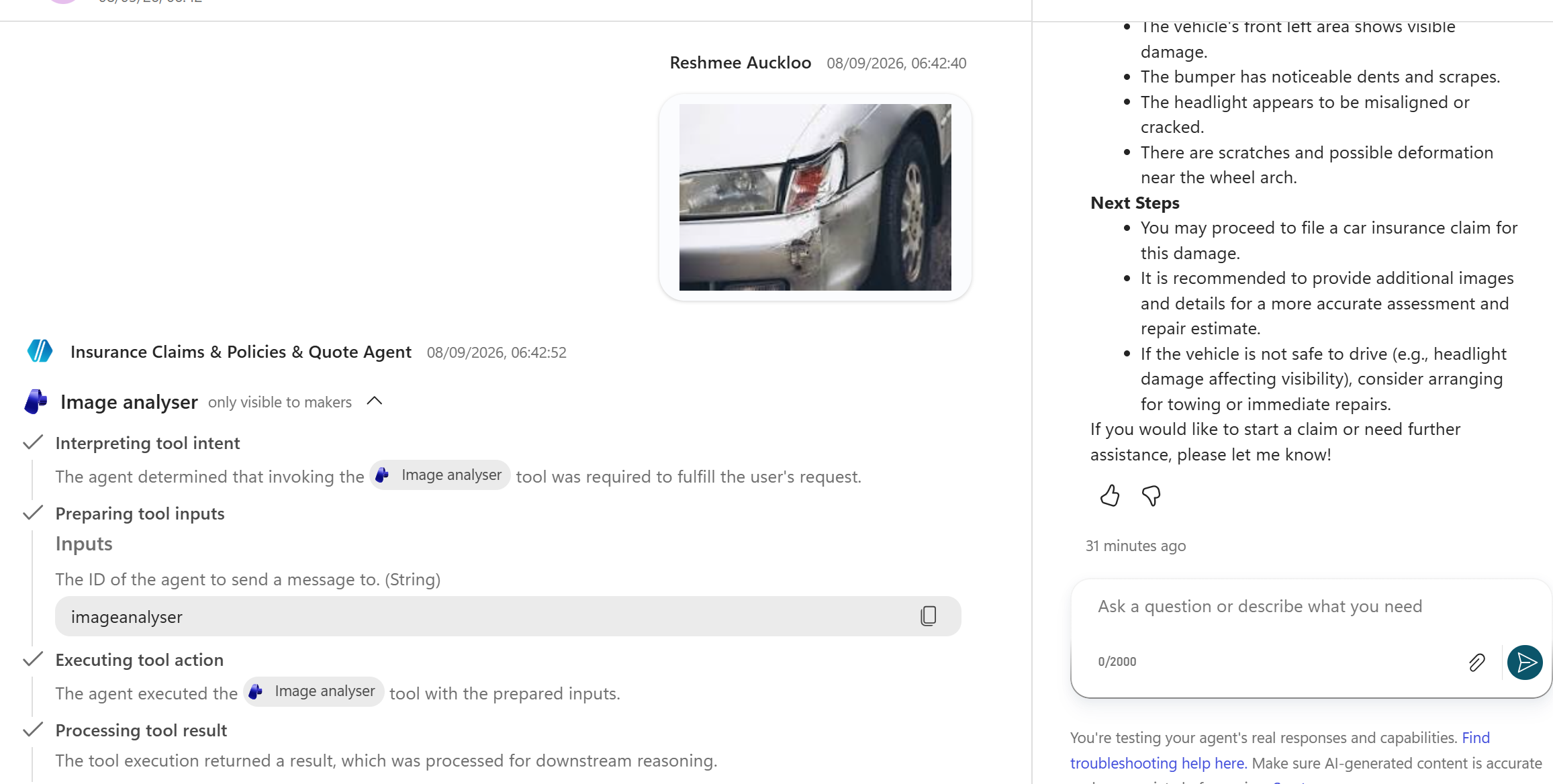
Once the Foundry agent is added, test it from Copilot Studio.
If the connection is configured correctly, Copilot Studio can call the Foundry agent and use its description to decide when to invoke it.
Summary
To connect a Foundry agent to Copilot Studio:
- Create or identify the Foundry agent.
- Copy the Foundry project endpoint.
- Create the Microsoft Foundry connection in Copilot Studio.
- Enter the target agent details.
- Test