SharePoint Sharing/Hero Link inventory
This post follows on from SharePoint Hero Links: What admins/adoption teams need to know? and focuses on the technical difference between legacy sharing links and hero links.
To validate what SharePoint is now generating behind the scenes, I adapted my earlier script from Converting SharePoint Sharing Links to Canonical URLs to validate whether Hero link exists or not even there are no unique permissions on the file/folder.
The key behaviour change is this: legacy sharing links were typically created only when a user accidentally shared an item (e.g. ‘people in your org’ link), or deliberately as with ‘specific people’ links. Hero links behave differently. SharePoint provisions them much more broadly, including for files and folders that do not have unique permissions and the single hero link would be amended for broader or restricted access.
That becomes visible when users select Copy link. Instead of getting a file or folder path if though the default is set to ‘OnlyPeopleAdded’, the link is unique link with a randomly generated ID which makes you hard to decipher which file the link refers to when shared /embedded in other locations which may make bulk updating those links difficult in case of migration [Converting SharePoint Sharing Links to Canonical URLs]https://reshmeeauckloo.com/posts/powershell-sharepoint-getfileurl-basedon-sharingurl/. For admins, content owners, and adoption teams, that makes management complex.
Hero link behavior with Copy link
With hero links enabled, Copy link returns the hero link rather than the underlying path even the default is set to ‘OnlyPeopleAdded’. In practice, that means a user often cannot tell what the link points to until they open it in a browser.
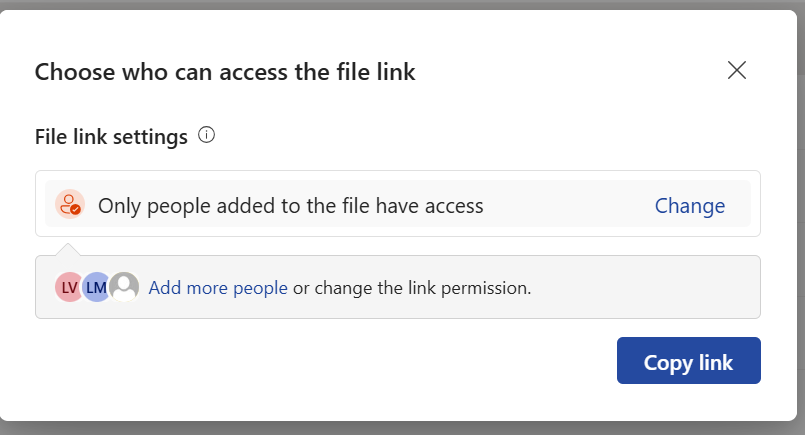
Folder hero link format:
https://<tenant url>/:f:/r/sites/<sitename>/<library>/Forms/<view>.aspx?id=<url encoded path>&p=true&share=<hero link id>
e.g.
https://reshmeeauckloo.sharepoint.com/:f:/r/sites/Company311/Shared%20Documents/Forms/AllItems.aspx?id=%2Fsites%2FCompany311%2FShared%20Documents%2FTest1%2FFolder%5F1&p=true&share=cgpOP4IqX7qjQJShmxNPxpbXEgUC4m6eDZEe5kQvKzmXP2djbA
File hero link example:
Format
https://<tenant url>/:w:/s/<sitename>/<hero link id>
e.g.
https://reshmeeauckloo.sharepoint.com/:w:/s/Company311/cQoQe1VOYjDkTa-popFrkTxHEgUCS-JsIr5gEyqmZTI0xvg3SA
Legacy Copy link
If your sharing controls are configured well, the default sharing link is often set to People with existing access. In that case, Copy link is closer to the older behaviour and returns a path-based link instead of creating a new broad sharing link.
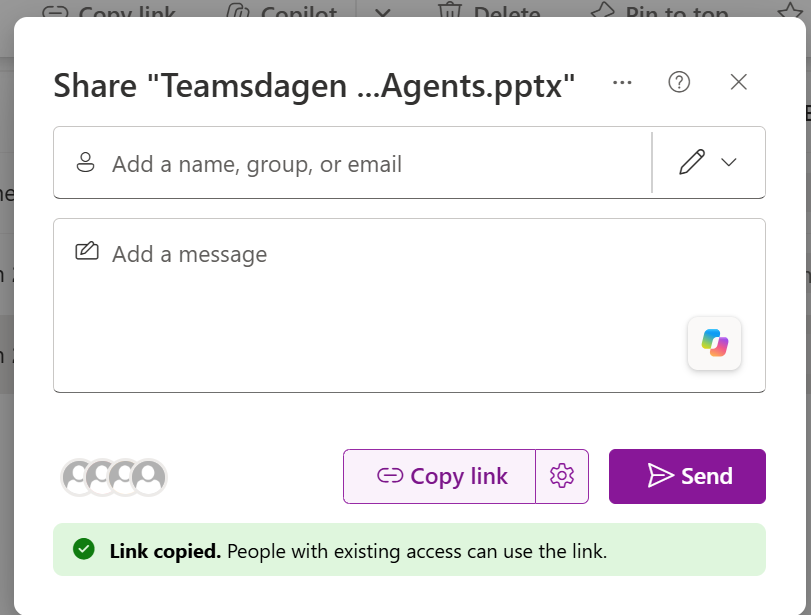
Example of a legacy copy link using People with existing access:
https://reshmee.sharepoint.com/:p:/r/sites/Governance_SAM_AISharePoint_PnPPowerShell/Shared%20Documents/Teamsdagen/Teamsdagen%202026%20SAM%20PowerShell%20Agents.pptx?d=w6c93601e13fc4b6383902b215a71e3e9&csf=1&web=1&e=Z4YpoJ
If the default sharing link is set to People in your organization or Anyone, then clicking Copy link creates a new sharing link instead:
https://reshmee.sharepoint.com/:p:/s/Governance_SAM_AISharePoint_PnPPowerShell/IQAeYJNs_BNjS4OQKyFacePpAd0ibmQBAJMxk2lsVvPhKiM?e=OyTJcK
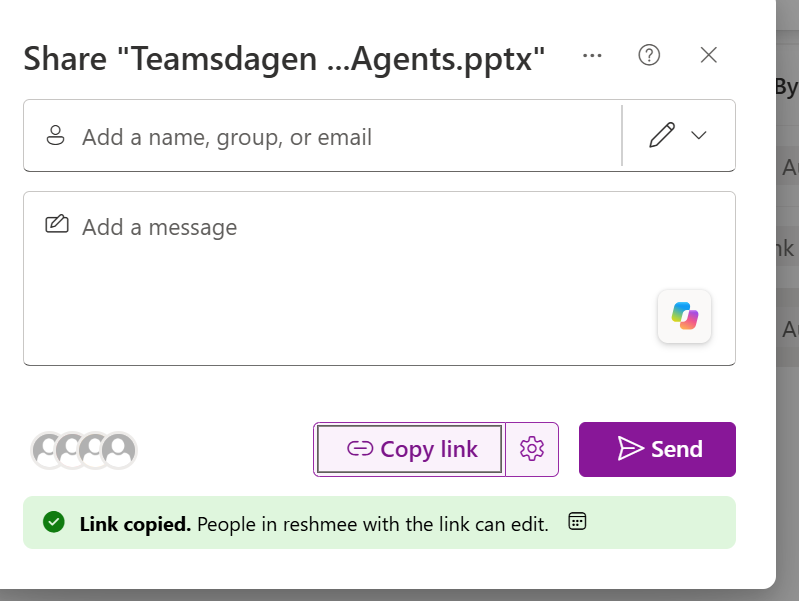
What the inventory script shows
When I ran the inventory, the result was clear: a sharing link exists even when the item does not have unique permissions. That is the important distinction. A hero link is not a reliable indicator that someone intentionally shared the item or broke inheritance.

The script below enumerates file and folder sharing links and then checks whether the target item has unique permissions. That makes it easier to separate genuine permission exceptions from hero-link noise in your reporting. Alas it will take longer to report on sharing links only.
PnP PowerShell
The PnP PowerShell cmdlets Get-PnPFolderSharingLink and Get-PnPFileSharingLink uses Microsoft Graph under the hood
param(
    [Parameter(Mandatory=$true)]
    [string]$SiteUrl
)
function Get-ShareLinkToken {
    param(
        [string]$ShareLinkUrl
    )

    if ([string]::IsNullOrWhiteSpace($ShareLinkUrl)) {
        return $null
    }

    $uri = [System.Uri]$ShareLinkUrl

    # Folder-style links usually carry the token in the "share" query parameter
    $queryParams = [System.Web.HttpUtility]::ParseQueryString($uri.Query)
    $shareToken = $queryParams["share"]

    if (-not [string]::IsNullOrWhiteSpace($shareToken)) {
        return [System.Uri]::UnescapeDataString($shareToken)
    }

    # File-style links usually store the token as the last path segment
    $lastSegment = $uri.Segments[-1].TrimEnd('/')

    if (-not [string]::IsNullOrWhiteSpace($lastSegment)) {
        return [System.Uri]::UnescapeDataString($lastSegment)
    }

    return $null
}
function Get-ListItems_WithUniquePermissions{
    param(
        [Parameter(Mandatory)]
        [Microsoft.SharePoint.Client.List]$List
    )
    $selectFields = "ID,HasUniqueRoleAssignments,FileRef,FileLeafRef,FileSystemObjectType"

    $Url = $siteUrl + '/_api/web/lists/getbytitle(''' + $($list.Title) + ''')/items?$select=' + $($selectFields)
    $nextLink = $Url
    $listItems = @()
    $Stoploop =$true
    while($nextLink){
        do{
        try {
            $response = invoke-pnpsprestmethod -Url $nextLink -Method Get
            $Stoploop =$true

        }
        catch {
            write-host "An error occured: $_  : Retrying" -ForegroundColor Red
            $Stoploop =$true
            Start-Sleep -Seconds 30
        }
    }
    While ($Stoploop -eq $false)

        $listItems += $response.value | where-object{$_.HasUniqueRoleAssignments -eq $true}
        if($response.'odata.nextlink'){
            $nextLink = $response.'odata.nextlink'
        }    else{
            $nextLink = $null
        }
    }

    return $listItems
}

connect-PnPOnline -Url $siteUrl
$dateTime = (Get-Date).toString("dd-MM-yyyy-hh-ss")
$invocation = (Get-Variable MyInvocation).Value
$directorypath = Split-Path $invocation.MyCommand.Path
$fileName = "SharedLinks-PnP" + $dateTime + ".csv"
$ReportOutput = $directorypath + "\Logs\"+ $fileName
$global:Results = @();

$ll = Get-PnPList -Includes BaseType, Hidden, Title,HasUniqueRoleAssignments,RootFolder | Where-Object {$_.Hidden -eq $False -and $_.Title -notin $ExcludedLists } #$_.BaseType -eq "DocumentLibrary"
  Write-Host "Number of lists $($ll.Count)";

  foreach($list in $ll)
  {
    $listUrl = $list.RootFolder.ServerRelativeUrl;
    $ListItems_withUniquePermissions = Get-ListItems_WithUniquePermissions -List $list

    $links = Get-PnPListItem -List $list.Title | Get-PnPFileSharingLink

$Folders= Get-PnPListItem -List $list.Title -Fields "FileRef", "FileLeafRef", "FileSystemObjectType" | Where-Object { $_.FileSystemObjectType -eq "Folder" }

$folderLinks = $folders | ForEach-Object {
    Get-PnPFolderSharingLink -Folder $_['FileRef'] -ErrorAction SilentlyContinue
}

foreach($folderLink in $folderLinks)
{
    if ($folderLink -eq $null) {
        continue
    }

     # Check if ShareId already exists in global results
    if ($global:Results | Where-Object { $_.ShareId -eq $folderLink.Id }) {
        Write-Host "Skipping duplicate ShareId: $($folderLink.Id)" -ForegroundColor Yellow
        continue
    }

$isUnique = $false
   $uniqueItem = $listItems_withUniquePermissions | Where-Object { $_.FileRef -eq $folderLink.Parent.ServerRelativeUrl }
   if ($uniqueItem) {
    $isUnique = $true
   }
   else {
       $isUnique = $false
   }
   $LinkToken = Get-ShareLinkToken -ShareLinkUrl $folderLink.Link.WebUrl
    $result = New-Object PSObject -property $([ordered]@{
            Name = $folderLink.Parent.Name
            RelativeURL = $folderLink.Parent.ServerRelativeUrl
            ShareId = $folderLink.Id
            RoleList = $folderLink.Roles -join "|"
            Users = $folderLink.GrantedToIdentitiesV2.User.Email -join "|"
            ShareLinkUrl  = $folderLink.Link.WebUrl
            ShareLinkType  = $folderLink.Link.Type
            ShareLinkScope  = $folderLink.Link.Scope
            HeroLink    = if ($LinkToken -and $LinkToken.StartsWith('c', [System.StringComparison]::OrdinalIgnoreCase)) { 'Hero Link' } else { 'Legacy Link' }
            Expiration = $folderLink.ExpirationDateTime
            BlocksDownload = $folderLink.Link.PreventsDowload
            RequiresPassword = $folderLink.HasPassword
            ContainsUniquePermissions = $isUnique

        })
        $global:Results +=$result;
}


foreach($ShareLink in $links)
{
    # Skip if ShareLink is null
    if ($ShareLink -eq $null) {
        continue
    }

    # Check if ShareId already exists in global results
    if ($global:Results | Where-Object { $_.ShareId -eq $ShareLink.Id }) {
        Write-Host "Skipping duplicate ShareId: $($ShareLink.Id)" -ForegroundColor Yellow
        continue
    }
    $uniqueItem = $listItems_withUniquePermissions | Where-Object { $_.FileRef -eq $ShareLink.Parent.ServerRelativeUrl }
    $isUnique = $false
 if ($uniqueItem) {
    $isUnique = $true
   }
   else {
       $isUnique = $false
   }
   $LinkToken = Get-ShareLinkToken -ShareLinkUrl $ShareLink.Link.WebUrl
    $result = New-Object PSObject -property $([ordered]@{
            Name = $ShareLink.Parent.Name
            RelativeURL = $ShareLink.Parent.ServerRelativeUrl
            ShareId = $ShareLink.Id
            RoleList = $ShareLink.Roles -join "|"
            Users = $ShareLink.GrantedToIdentitiesV2.User.Email -join "|"
            ShareLinkUrl  = $ShareLink.Link.WebUrl
            ShareLinkType  = $ShareLink.Link.Type
            ShareLinkScope  = $ShareLink.Link.Scope
            HeroLink    = if ($LinkToken -and $LinkToken.StartsWith('c', [System.StringComparison]::OrdinalIgnoreCase)) { 'Hero Link' } else { 'Legacy Link' }
            Expiration = $ShareLink.ExpirationDateTime
            BlocksDownload = $ShareLink.Link.PreventsDowload
            RequiresPassword = $ShareLink.HasPassword
            ContainsUniquePermissions = $isUnique

        })
        $global:Results +=$result;
    }
  }
 $global:Results | Export-CSV $ReportOutput -NoTypeInformation
  #Export-CSV $ReportOutput -NoTypeInformation
Write-host -f Green "Sharing Links Report Generated Successfully!"
Sample hero link output
Here is an example of a hero link returned by the script. One confusing detail is that the scope is shown as Anonymous, which can be misleading when you are trying to separate hero links from legacy sharing links in a report.
From my testing, the most reliable indicators of a hero link were:
- the ShareLinkScope is reported as anonymous if set to either ‘Anyone with the link’ or ‘Only people added to the file have access’
Anyone with the link
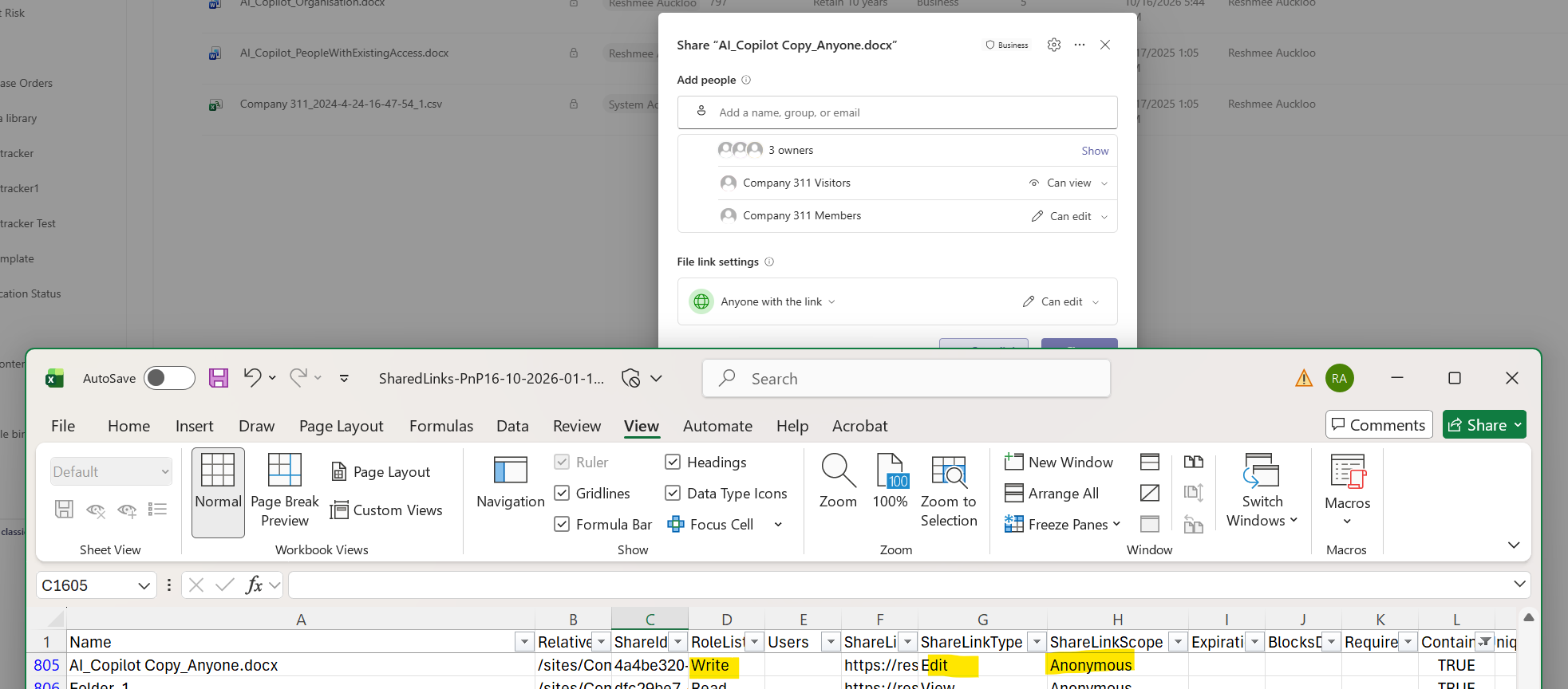
Only people added to the file have access
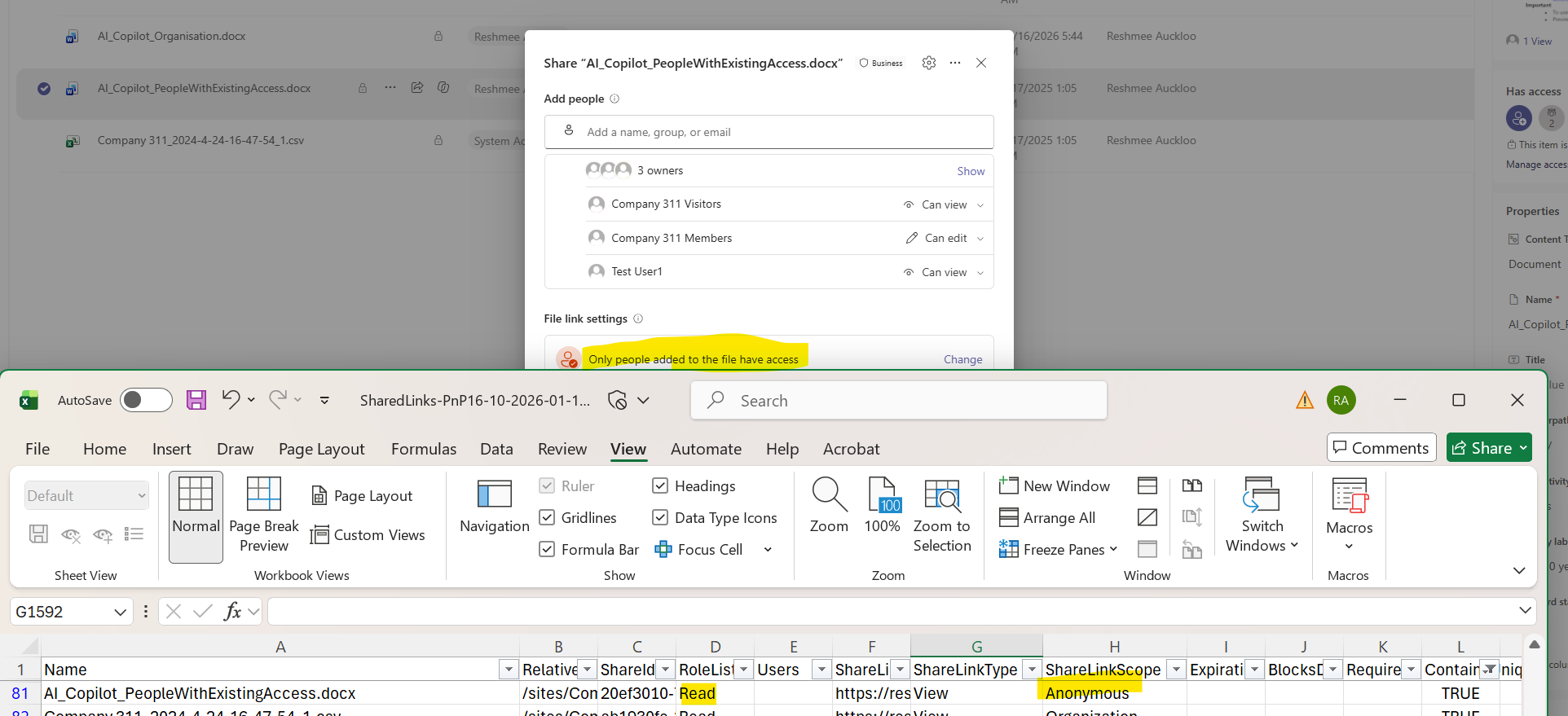
For legacy links, no additional property indicated that a link was set to “Only people added to the file have access” (equivalent to “People with existing access”). As a result, the report returned only the file or folder path, not a sharing link. For hero links, however, it is important to distinguish between “Anyone with the link” and “Only people added to the file have access.” Hopefully the API will improve to reduce confusion.
- the hero link does not have an expiry date
- the report shows the users field as blank even when additional users have been added. This is because the users have been added directly to the underlying file or folder and not to the link.
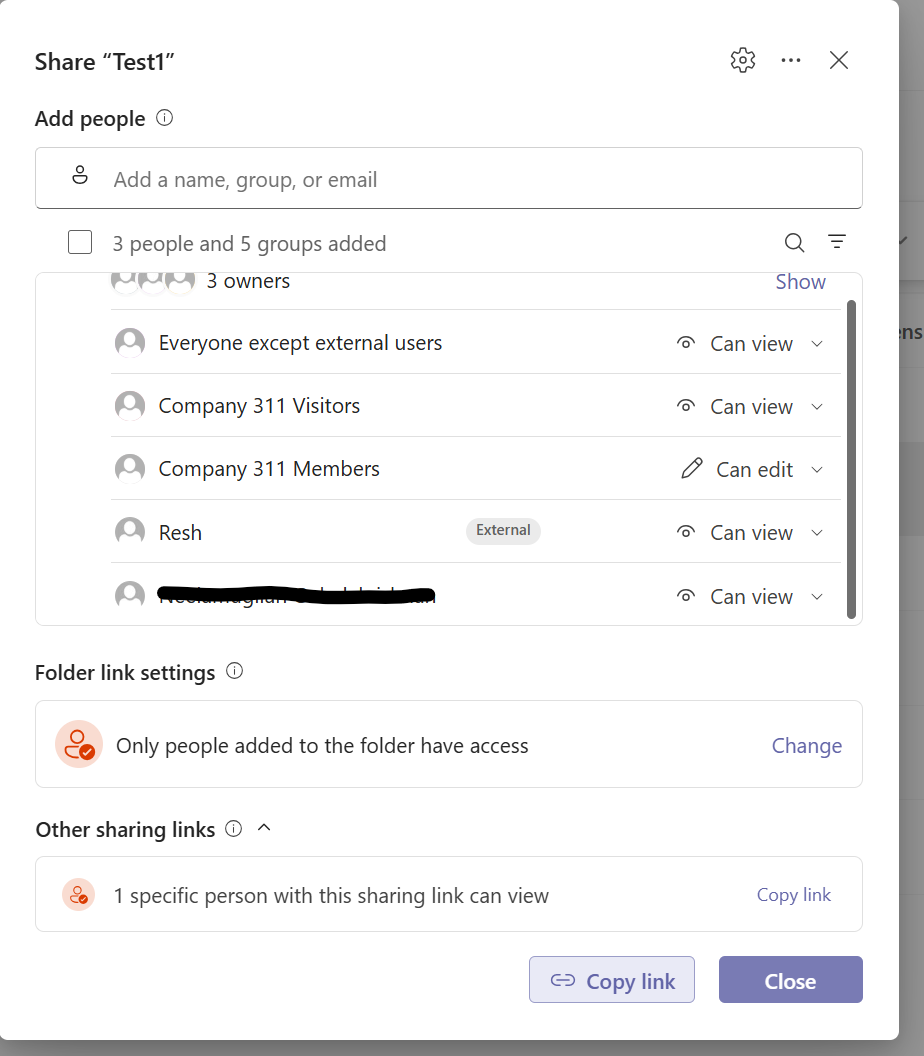
- ShareLinkType always set to View
- Not easy to distinguish a hero link from sharing link from the report except if we look at some unsupported properties for hero link: no password, no expiry date, no users.
In my testing, hero links for files began with
cQ, while hero links for folders began withcG. For example, this file link begins withcQ:
https://reshmeeauckloo.sharepoint.com/:w:/s/Company311/cQrhmWnDllqITY95m0X2gt5REgUCGhkO5u5l-EFUpekyT5YrJQ
This folder link begins with cG:
https://reshmeeauckloo.sharepoint.com/:f:/r/sites/Company311/Shared%20Documents/Forms/AllItems.aspx?id=%2Fsites%2FCompany311%2FShared%20Documents%2FTest1&p=true&share=cgrfN5MsN8HgQqn4LfUe92VYEgUC%2D5OkDIj%5FE8EVJvXIR%5F4eLA
Similarly, the legacy sharing links I observed began with Ig for folders and IQ for files.
Ms Graph Output
Name	RelativeURL	ShareId	RoleList	Users	ShareLinkUrl	ShareLinkType	ShareLinkScope
Test1	/sites/Company311/Shared Documents/Test1	2c9337df-c137-42e0-a9f8-2df51ef76558	Read		https://reshmeeauckloo.sharepoint.com/:f:/r/sites/Company311/Shared%20Documents/Forms/AllItems.aspx?id=%2Fsites%2FCompany311%2FShared%20Documents%2FTest1&p=true&share=cgrfN5MsN8HgQqn4LfUe92VYEgUC%2D5OkDIj%5FE8EVJvXIR%5F4eLA	View	Anonymous
REST API
An alternative way is to use the REST API endpoint _api/web/Lists(@a1)/GetItemById(@a2)/GetSharingInformation?@a1=%270b9e04b9%2D1d17%2D4b4d%2D8006%2Df5de506c7cfc%27&@a2=%2741%27&$Expand=pickerSettings,permissionsInformation to retrieve the information as follows: The hero link is available from the property mainlink from the object returned which provided a more reliable way to report on them.
#Parameters
#$tenantUrl = Read-Host -Prompt "Enter tenant collection URL";
$dateTime = (Get-Date).toString("dd-MM-yyyy-hh-ss")
$invocation = (Get-Variable MyInvocation).Value
$directorypath = Split-Path $invocation.MyCommand.Path
$fileName = "HeroLinks_REST-" + $dateTime + ".csv"
$ReportOutput = $directorypath + "\Logs\"+ $fileName

# Ensure the logs folder exists
$logsFolder = Split-Path -Path $ReportOutput -Parent
if (-not (Test-Path -Path $logsFolder)) {
    New-Item -Path $logsFolder -ItemType Directory
}

# Ensure the file exists
if (-not (Test-Path -Path $ReportOutput)) {
    New-Item -Path $ReportOutput -ItemType File
}

#Connect to PnP Online
#Connect-PnPOnline -Url $tenantUrl -Interactive
#write-host $("Start time " + (Get-Date))
$global:Results = @();

function Get-ListItems_WithUniquePermissions{
    param(
        [Parameter(Mandatory)]
        [Microsoft.SharePoint.Client.List]$List
    )
    $selectFields = "ID,HasUniqueRoleAssignments,FileRef,FileLeafRef,FileSystemObjectType"

    $Url = $siteUrl + '/_api/web/lists/getbytitle(''' + $($list.Title) + ''')/items?$select=' + $($selectFields)
    $nextLink = $Url
    $listItems = @()
    $Stoploop =$true
    while($nextLink){
        do{
        try {
            $response = invoke-pnpsprestmethod -Url $nextLink -Method Get
            $Stoploop =$true

        }
        catch {
            write-host "An error occured: $_  : Retrying" -ForegroundColor Red
            $Stoploop =$true
            Start-Sleep -Seconds 30
        }
    }
    While ($Stoploop -eq $false)

        $listItems += $response.value
        #| where-object{$_.HasUniqueRoleAssignments -eq $true}
        if($response.'odata.nextlink'){
            $nextLink = $response.'odata.nextlink'
        }    else{
            $nextLink = $null
        }
    }

    return $listItems
}

function getSharingLink($_object,$_type,$_siteUrl,$_list)
{
    $relativeUrl = $_object.FileRef
    $sharingSettings = Invoke-PnPSPRestMethod -Method Post -Url "$($_siteUrl)/_api/web/Lists(@a1)/GetItemById(@a2)/GetSharingInformation?@a1='{$($_list.Id)}'&@a2='$($_object.Id)'&`$Expand=permissionsInformation,pickerSettings"  -ContentType "application/json;odata=verbose" -Content "{}"

    ForEach ($shareLink in $sharingSettings.permissionsInformation.mainaccess)
    {
        $linkDetails = $shareLink.mainlink
        if ($linkDetails.Url) {
        $audienceDescription = switch ($linkDetails.audience) {
            1 { "Only people added" }
            8 { "People in your organization" }
            16 { "Anyone with the link" }
            default { "Unknown ($($linkDetails.audience))" }
        }
        $roleDescription = switch ($linkDetails.role) {
            1 { "Can View" }
            2 { "Can Edit" }
            7 { "Can't Download" }
            default { "Unknown ($($linkDetails.role))" }
        }
        $sharedLinkObject = New-Object PSObject -property $([ordered]@{
            ItemID   = $item.Id
            ShareLink = $linkDetails.Url
            Name = $_object.FileLeafRef ?? $_object.Title
            Type = $_type -eq 1 ? "Folder" : "File"
            RelativeURL = $_object.FileRef ?? ""
            audience  = $audienceDescription
#            effectiveAudience = $linkDetails.effectiveAudience
 #           effectiveRole = $linkDetails.effectiveRole

            role = $roleDescription
            shareId = $linkDetails.shareId
            ItemUrl = $sharingSettings.ItemUrl
            HasUniqueRoleAssignments = $_object.HasUniqueRoleAssignments
            # Add other properties as needed
        })
        $global:Results +=$sharedLinkObject;
    }
  }
}
    #Exclude system lists
$ExcludedLists = @("Access Requests", "App Packages", "appdata", "appfiles", "Apps in Testing", "Cache Profiles", "Composed Looks", "Content and Structure Reports", "Content type publishing error log", "Converted Forms",
    "Device Channels", "Form Templates", "fpdatasources", "Get started with Apps for Office and SharePoint", "List Template Gallery", "Long Running Operation Status", "Maintenance Log Library", "Images", "site collection images"
    , "Master Docs", "Master Page Gallery", "MicroFeed", "NintexFormXml", "Quick Deploy Items", "Relationships List", "Reusable Content", "Reporting Metadata", "Reporting Templates", "Search Config List", "Site Assets", "Preservation Hold Library",
    "Site Pages", "Solution Gallery", "Style Library", "Suggested Content Browser Locations", "Theme Gallery", "TaxonomyHiddenList", "User Information List", "Web Part Gallery", "wfpub", "wfsvc", "Workflow History", "Workflow Tasks", "Pages")

#$m365Sites = Get-PnPTenantSite| Where-Object { $_.Url -like '*/sites/*' -and $_.Template -ne 'RedirectSite#0' }
#$m365Sites | ForEach-Object {
$siteUrl = Read-Host -Prompt "Enter site URL";
#$siteUrl = $_.Url;
Connect-PnPOnline -Url $siteUrl -Interactive

Write-Host "Processing site $siteUrl"  -Foregroundcolor "Red";

#getSharingLink $ctx $web "site" $siteUrl "";
$ll = Get-PnPList -Includes BaseType, Hidden, Title,HasUniqueRoleAssignments,RootFolder | Where-Object {$_.Hidden -eq $False -and $_.Title -notin $ExcludedLists } #$_.BaseType -eq "DocumentLibrary"
  Write-Host "Number of lists $($ll.Count)";

  foreach($list in $ll)
  {
    #Get all list items in batches
    $ListItems = Get-ListItems_WithUniquePermissions -List $list
        ForEach($item in $ListItems)
        {
            $type= $item.FileSystemObjectType;
            getSharingLink $item $type $siteUrl $list;
        }
     }
#}

 $global:Results | Export-CSV $ReportOutput -NoTypeInformation
Write-host -f Green "Hero Links Report Generated Successfully!"
write-host $("End time " + (Get-Date))
REST API Output

Final takeaway
If you are reviewing sharing posture in SharePoint Online, do not assume that every sharing link in your export represents a deliberate sharing action or a permission break. Hero links change that assumption. You now need to distinguish between:
- links created as part of actual sharing activity
- links automatically provisioned by SharePoint as hero links
That distinction matters for governance reporting, user support, and any clean-up exercise based on exported sharing-link inventories.